Gmail is one of the most popular platform for communication when it comes to official connections and it has been an integral part of our daily routine now. You might have received various mails in gmail and to keep them organized better, you might have created different folders and labels. As the time goes, you may not need some labels as more categories and labels would make your gmail interface cluttered and harder to navigate.
You may also be worried about your emails being deleted after deleting the labels and folders in gmail. However, you need not worry about that as deleting a label does not delete the emails inside it, it only removes the label from the sidebar menu. You must be aware about the labels you want to delete so that you don’t end up deleting your important emails.
This article explains how to delete folders or labels in Gmail on both Android, iPhone and PC in a quick and simple step-by-step guide and methods for both app and browser in 2025.
How to Delete Labels in Gmail on Desktop (Web Browser)
We popularly use gmail for formal communications and laptop and desktop are the most common devices used for email communications. It is simple and easy to delete labels in Gmail on your desktop from a web browser.
Step 1: Open Gmail in your web browser and log in to your account.
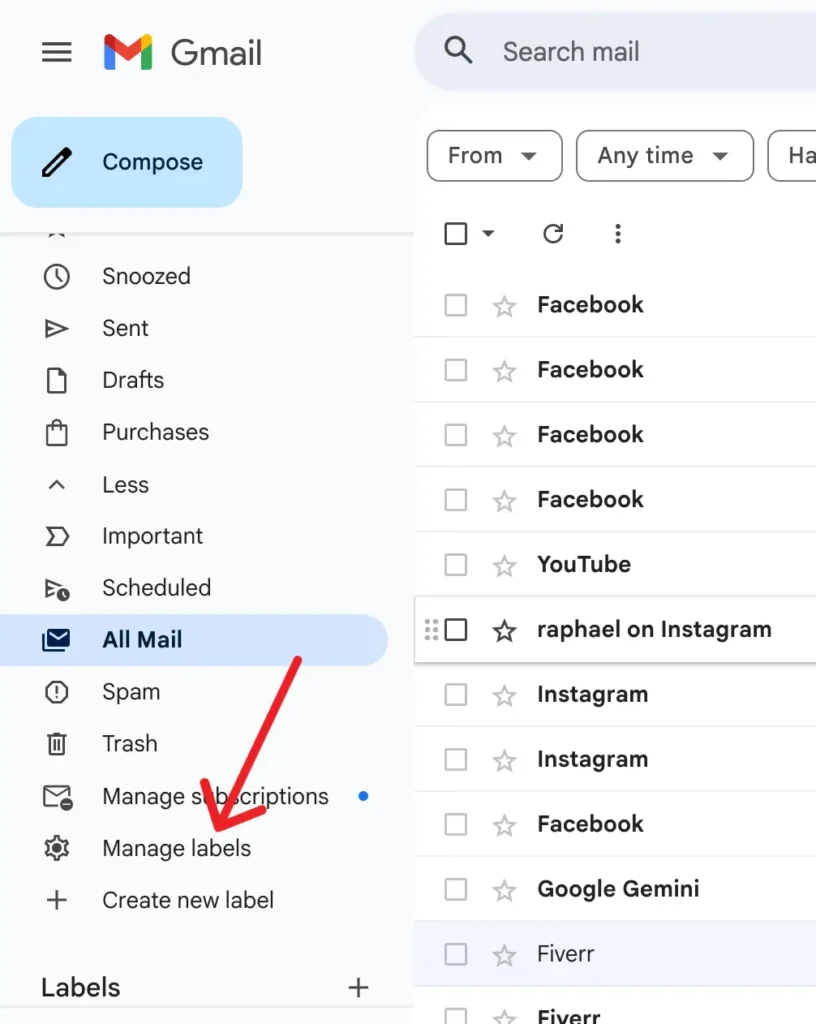
Step 2: Scroll down and click on Manage labels or More as the option shown to expand all labels from the left sidebar.
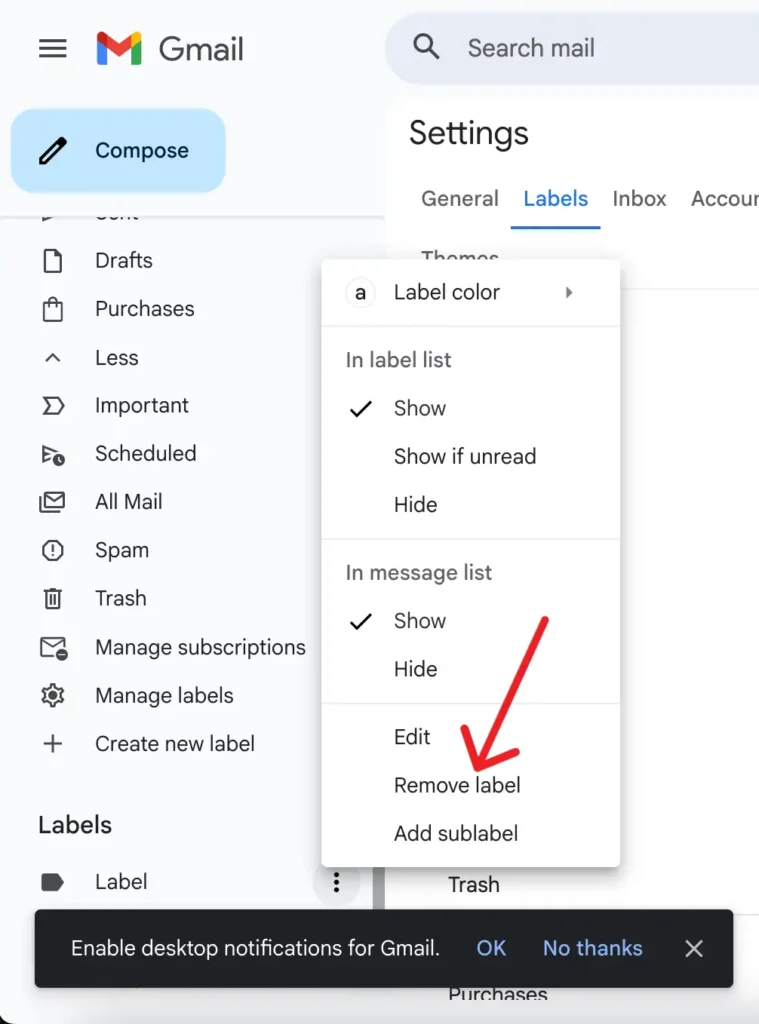
Step 3: Search for the label you want to delete and click the three dots next to it.
Step 4: Click on Remove label from the options available.
Step 5: Click on Confirm or correct icon to remove the label immediately.
Repeat the same process if you have multiple lables to delete from your gmail interface.
How to Delete Labels in Gmail on Android
As the Gmail mobile app doesn’t have the option to delete the lables directly form the app, you need to use the phone’s browser to see the label settings and delete it. Check the steps below to access the labels settings from your android mobile.
Step 1: Visit mail.google.com on your mobile browser (preferably Chrome).
Step 2: Click on the three dots and tap on Desktop Site to switch to Desktop mode.
Step 3: Sign in to your google account to access Gmail if required.
Step 4: Scroll down to find the label you want to delete from the left sidebar.
Step 5: Tap the three dots and select Remove label to delete the folder.
Step 6: Tap Confirm or correct sign to delete the label.
Although you may not be able to delete folders or labels directly form the Gmail app on you android mobile, you can still delete the labels fro your android mobile.
How to Delete Labels in Gmail on iPhone (iOS)
Gmail app in iPhone doesn’t have the option to acess and change the label settings like that in the android’s gmail app. However, you do have an alternative same as in the android’s gmail to access gmail through a mobile browser.
Step 1: Open any broswer of your choice (Safari or Chrome) and visit mail.google.com.
Step 2: Acess the site in Desktop Mode by requesting Desktop Site from the options or menu options.
Step 3: Log into Gmail with your google account.
Step 4: Tap on the menu icon or look for labels in the sidebar.
Step 5: Locate the label that you want ot delete from the sidebar.
Step 6: Tap the three dots next to the label and tap Remove label.
Step 7: You need to confirm your selection.
Though you don’t have the direct option to remove or delte folders and labels in gmail app on your iPhone, you can still get it done from your iPhone itself.
Important: What Happens When You Delete a Label?
It is very important for you to understand how the labels or categories work on gmail so that you don’t delete the important mails stored in those labels while deleting the label in your gmail.
- Only the label tags is removed from Emails in your gmail.
- Email would still remain in your inbox or other labels if assigned.
- You can create the label with the same name anytime, if needed.
- You can navigate to your labels easily if only a few labels are there.
Deleting the label doesn’t delete the messages stored in those folders, and you must know these things while deleting a label on gmail.
Conclusion
You may want to delete your labels or folders in Gmail to make your interface organized and clutter-free emails. It easy simple and easy to delete the labels created and can be done from any device, whether you use Gmail on a desktop, Android, or iPhone. But, the catch is that you need to login to your account from a browser to achive the same as the option is not available in the app version of Gmail. Your emails stored in the labels won’t be deleted even if you delete the label associated with it, as the mail would be moved to the inbox folder. Check out the mehtods and steps mentioned in this post to manage and delete your Gmail folders and labels effectively for better organization of the mails.